ChatCut is a video editor with an AI agent built into the editing workspace. Ask the agent to assemble or revise an edit in natural language, generate new media, or make precise changes yourself on a multi-track timeline. You can use ChatCut through the Desktop app, web app, or Agent Plugin. We recommend the Desktop app.
What can I make with ChatCut?
- Turn talking-head, interview, or screen-recording footage into a tighter cut.
- Create short versions and alternate timelines from a longer project.
- Generate video, motion graphics, images, music, captions, and narration.
- Make app promos, product ads, explainers, and social videos.
- Edit speech by deleting or rearranging words in the Transcript panel.
- Export finished video, audio, subtitles, graphics, or XML.
How do I start?
- Download the Desktop app and sign in to ChatCut. If your account has no project, ChatCut creates one and opens the editor.
- To start another project, select the Home icon, then New project in the project dashboard.
- Add media through My Assets → Upload, or upload it directly in the AI panel and describe what you want in your prompt.
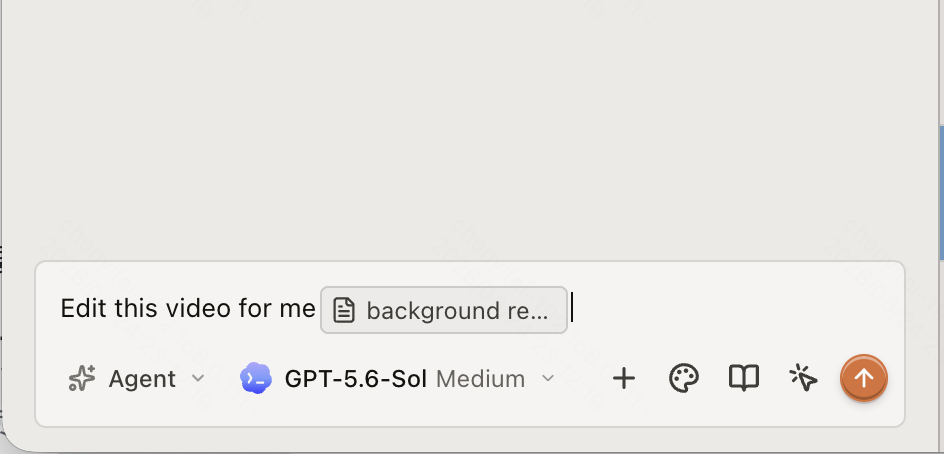
- Use Agent for editing help, or switch to Video Gen for direct video generation.
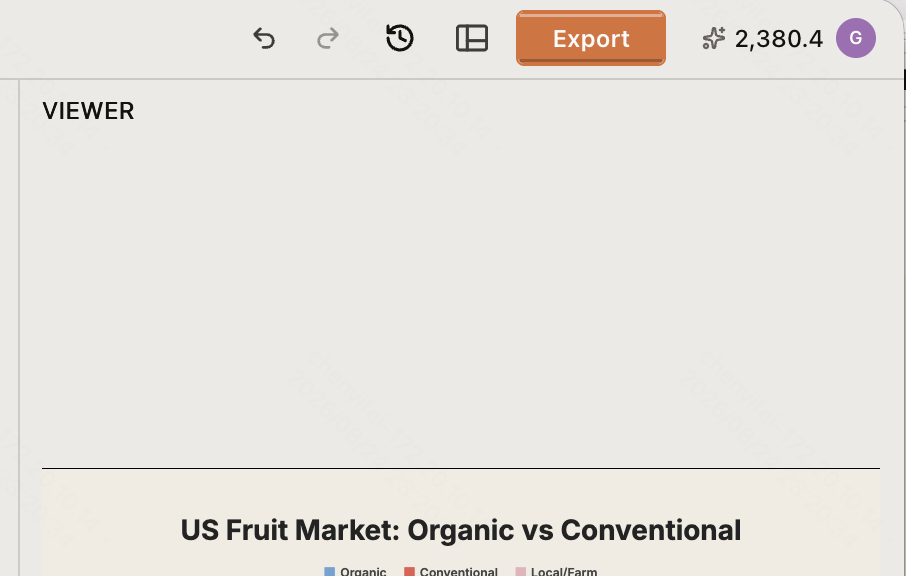
- Review the result in the Viewer and Timeline, then select Export in the top bar.
On an empty conversation, workflow cards may insert a starter prompt. You can edit it before sending.
How is the editor organized?
- AI: describe edits and attach references, Skills, styles, voices, or generation models.
- My Assets / Library / Transcript: import and organize media, browse built-in assets, or edit speech as text.
- Viewer: play and inspect the frame at the current playhead.
- Timeline: arrange clips on video and audio tracks and switch between multiple timelines.
- Top bar: return to projects, rename or share, undo, manage the workspace and versions, and export.
Continue to Editor Overview for a button-by-button tour, or AI Generation Modes for the two AI workflows.